 ClearNative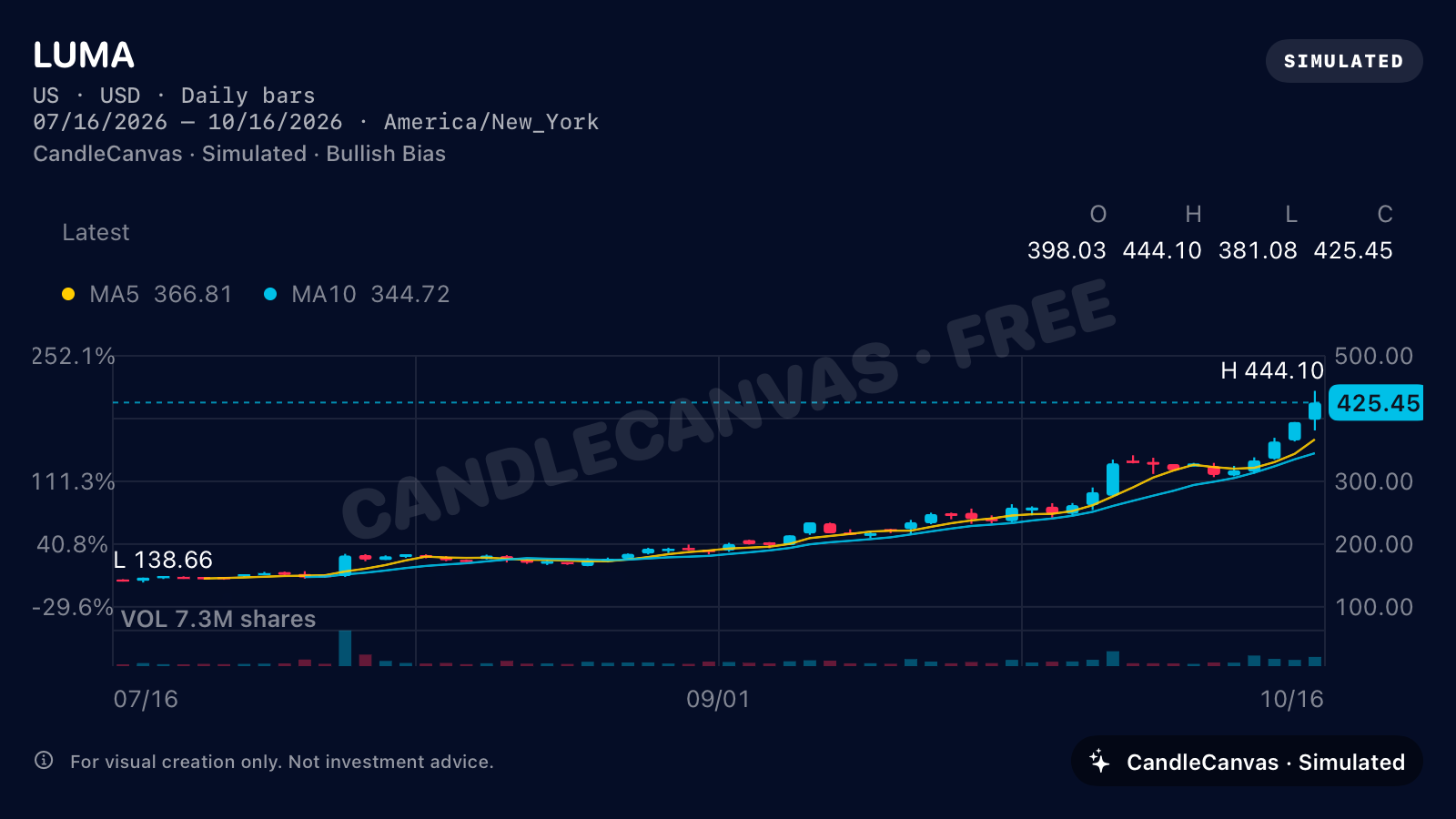
The result you are making
This walkthrough creates a simulated LUMA chart for a presentation, using the same English app and settings shown in the screenshots below. You will choose a fictional name, a trend and a colour palette, then export an image from CandleCanvas on iPhone or iPad. Use the studio’s tools rail to open each setting shown below.
Use a 1600 × 900 landscape PNG for a wide slide or a 1080 × 1350 portrait PNG for a tall visual. You can inspect the original files in the example gallery.
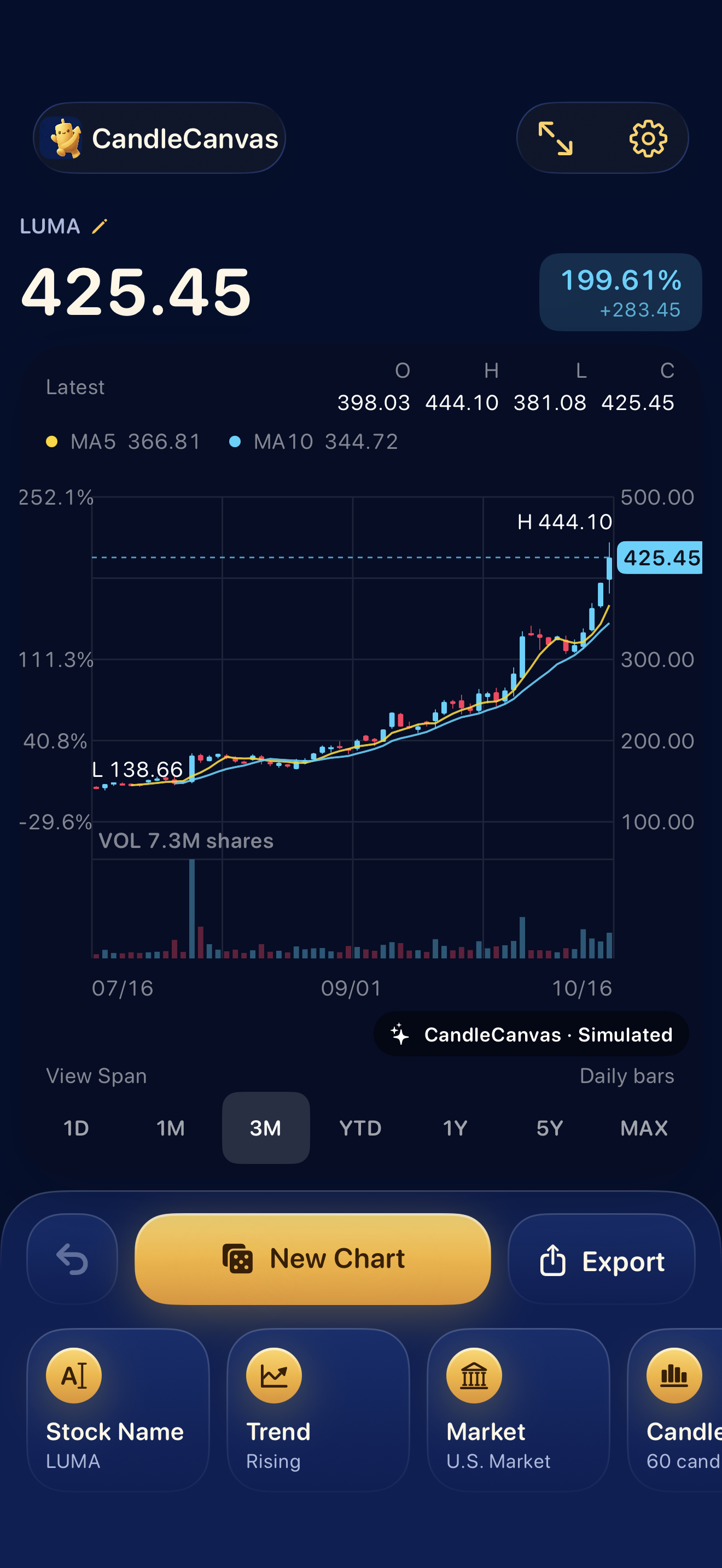
Name your fictional chart
Open CandleCanvas. In the bottom tools, tap Stock Name, or tap the name above the chart. Enter LUMA, then finish editing with the keyboard’s Done key or the checkmark on the panel. The name appears on the chart and in the exported image.
Use a clearly fictional label for an illustrative scenario. Changing the name does not fetch that company’s market data.
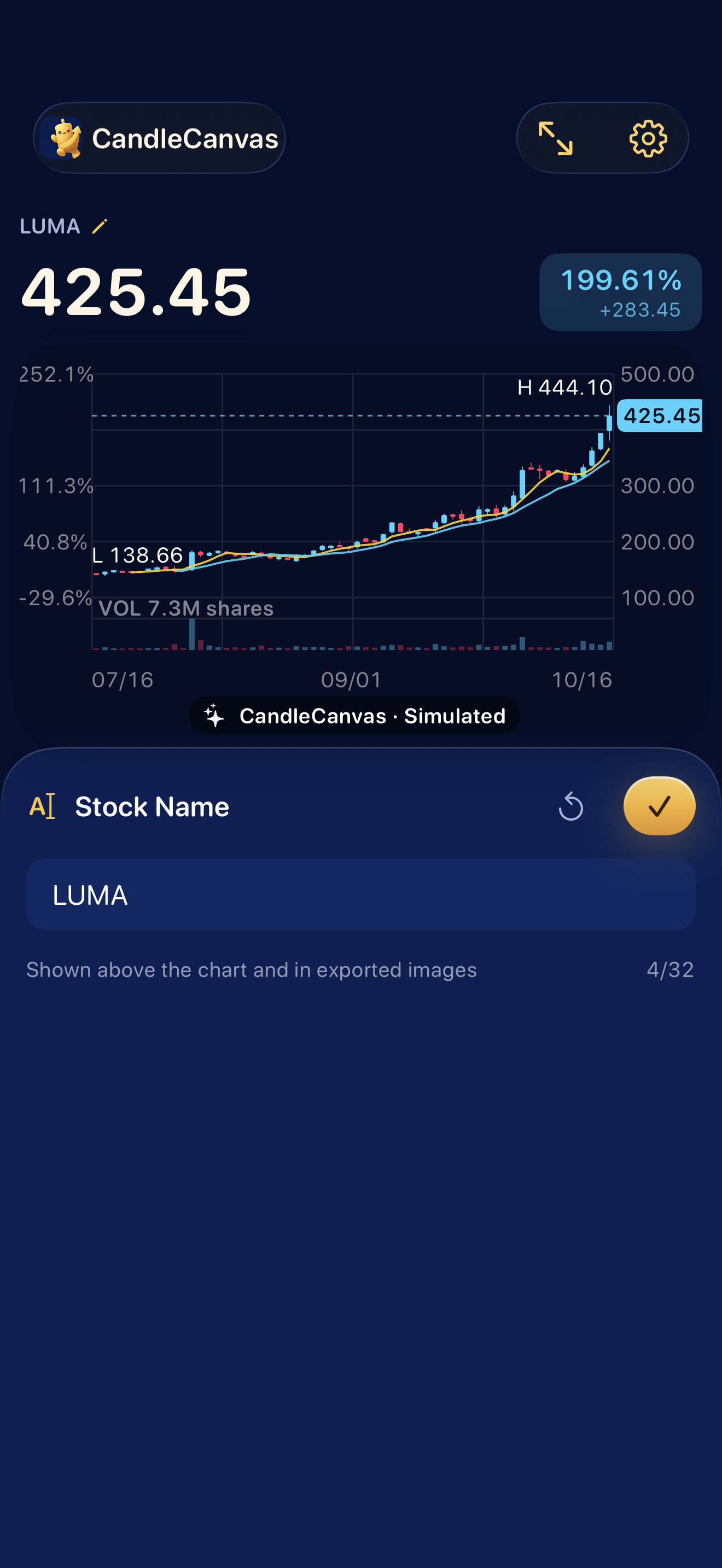
Set the view and trend
Select the 3M time span on the chart. In the tools, tap Trend to open Market Trend, then choose Rising. Close the panel with its checkmark. Tap New Chart when you want a fresh simulated series for the selected span.
For this deliberately strong rising example, use US market, starting price 142 and volatility 3.2. Lower Volatility if you want a calmer chart. Swipe the tools rail to find Market, Start Price and Volatility. A preset describes a broad tendency; individual candles can still move against it.
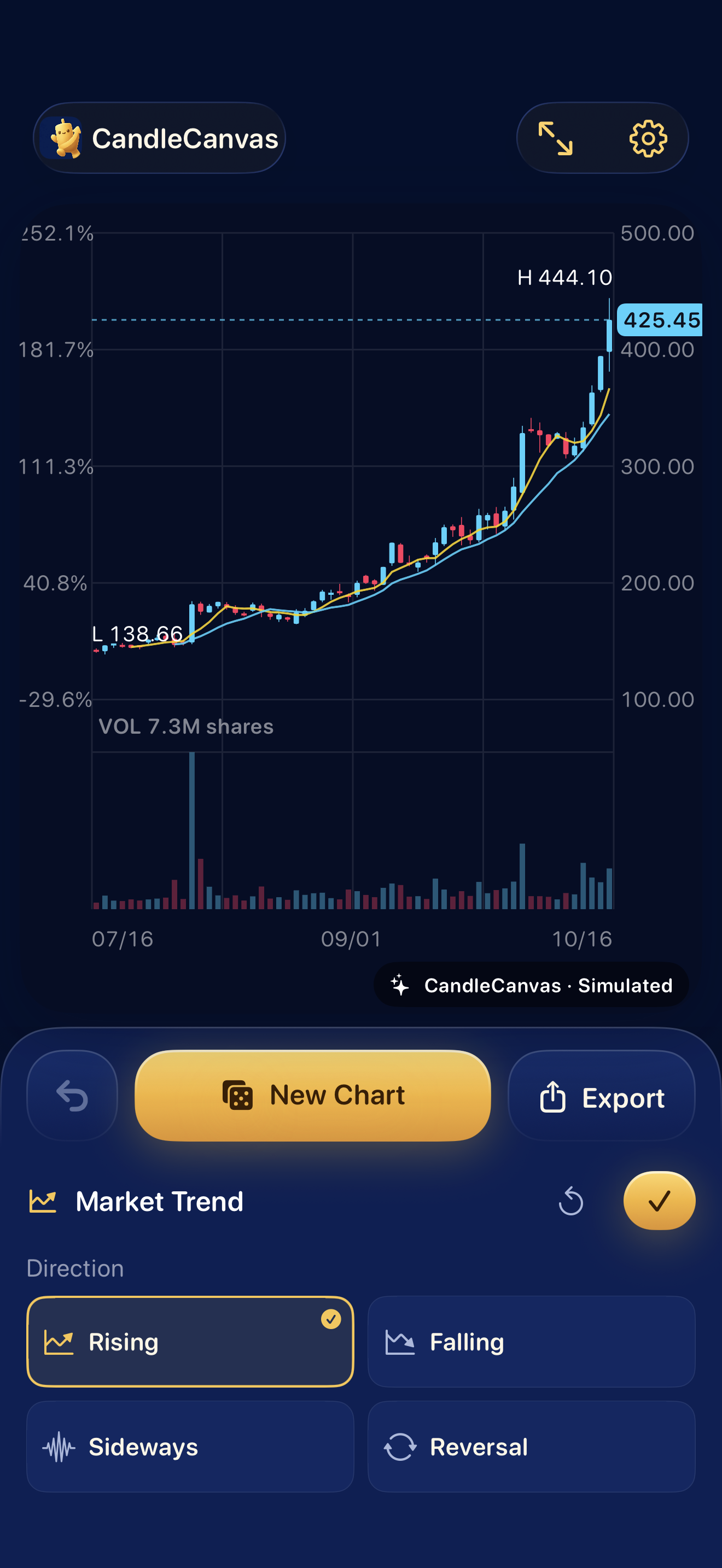
Choose colours and useful details
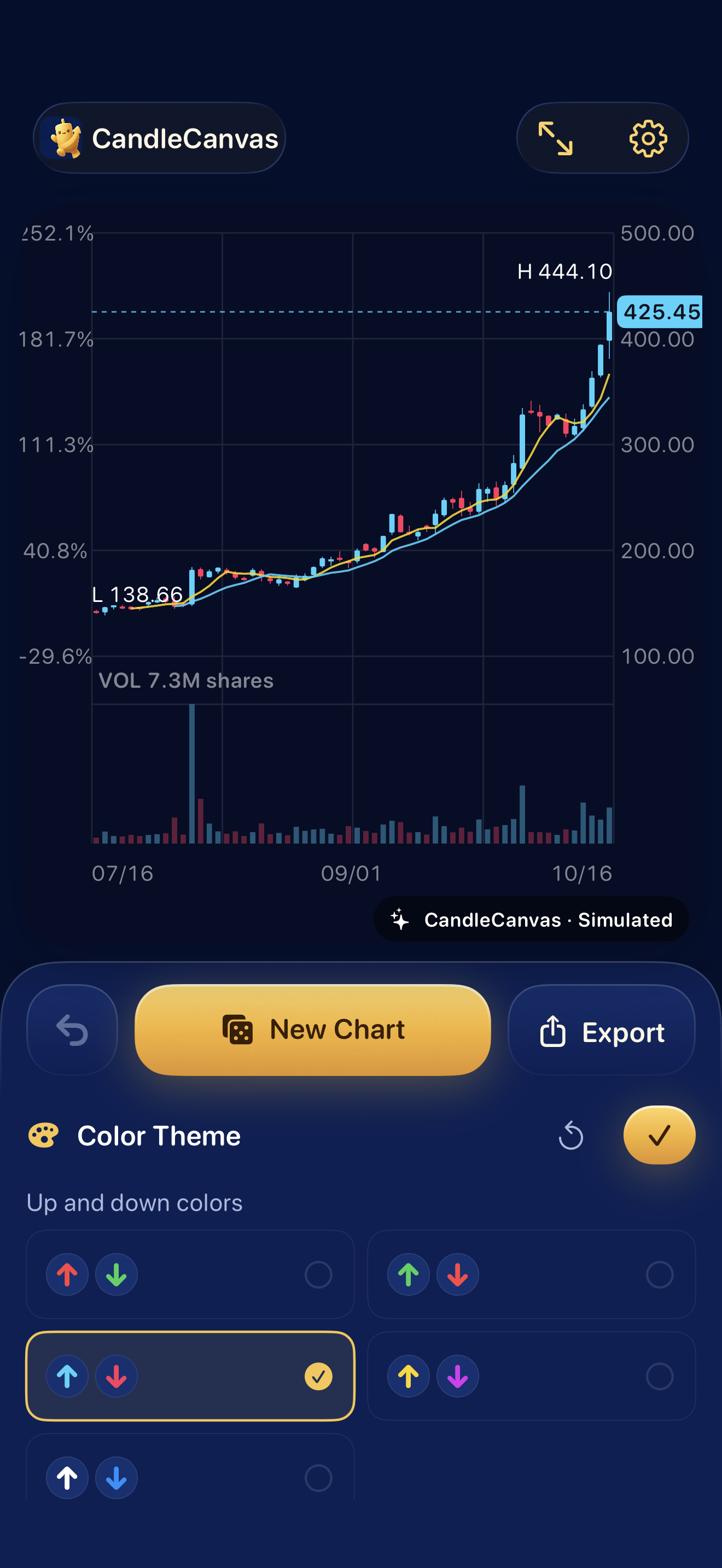
Tap Colors to open Color Theme. For LUMA, select the cyan-up, pink-down swatch. Close the panel with its checkmark. In Chart Details, keep volume, MA5 and MA10 enabled if they help your slide.
The yellow and blue moving-average lines are separate from the candle-colour choice. Look at the EMBER example for a cleaner result with both moving averages off.
Export the image from the app
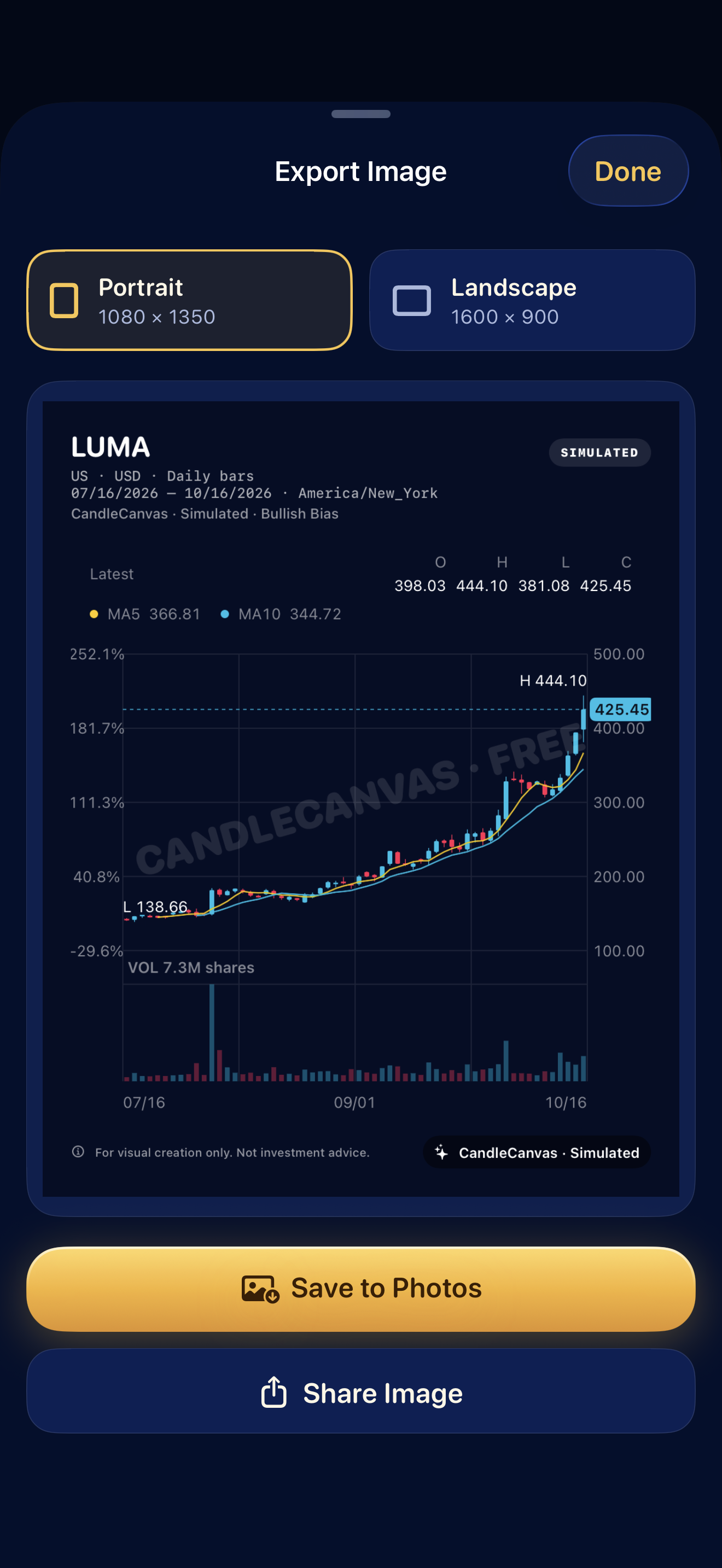
Tap Export in the bottom action row. In Export Image, select Landscape for a 1600 × 900 PNG, or Portrait for a 1080 × 1350 PNG. Review the preview before using Save to Photos or Share Image.
The screenshot shows Portrait selected; choose Landscape for the wide LUMA result at the top of this guide. Photo access may be requested when saving. Share Image opens the system sharing options.
Put the PNG on your slide
Insert the exported image in your presentation tool and preserve its proportions. Check the slide at its actual display size: candle bodies, wicks, axis values and the simulated-data disclosure should remain readable. Keep the watermark and disclosure visible.
A suitable caption is “Illustrative scenario — simulated data”. If you are making a claim about actual market performance, use verifiable real data for that claim.
Why your chart may look different
CandleCanvas generates variations. Using the same visible controls does not guarantee the identical sequence of candles. These website captures used a fixed internal demo seed and a fixed scenario date so the illustrations stay consistent; neither is a promise that you can reproduce every pixel from the public controls.
If you want another version, tap New Chart and compare. Use Previous Chart to return to an earlier chart during your app session. Continue with trend and colour examples or the mockup workflow.
Based on CandleCanvas app features and original app exports. All illustrated market data is fictional.