 ClearNative
Start with the space in your design
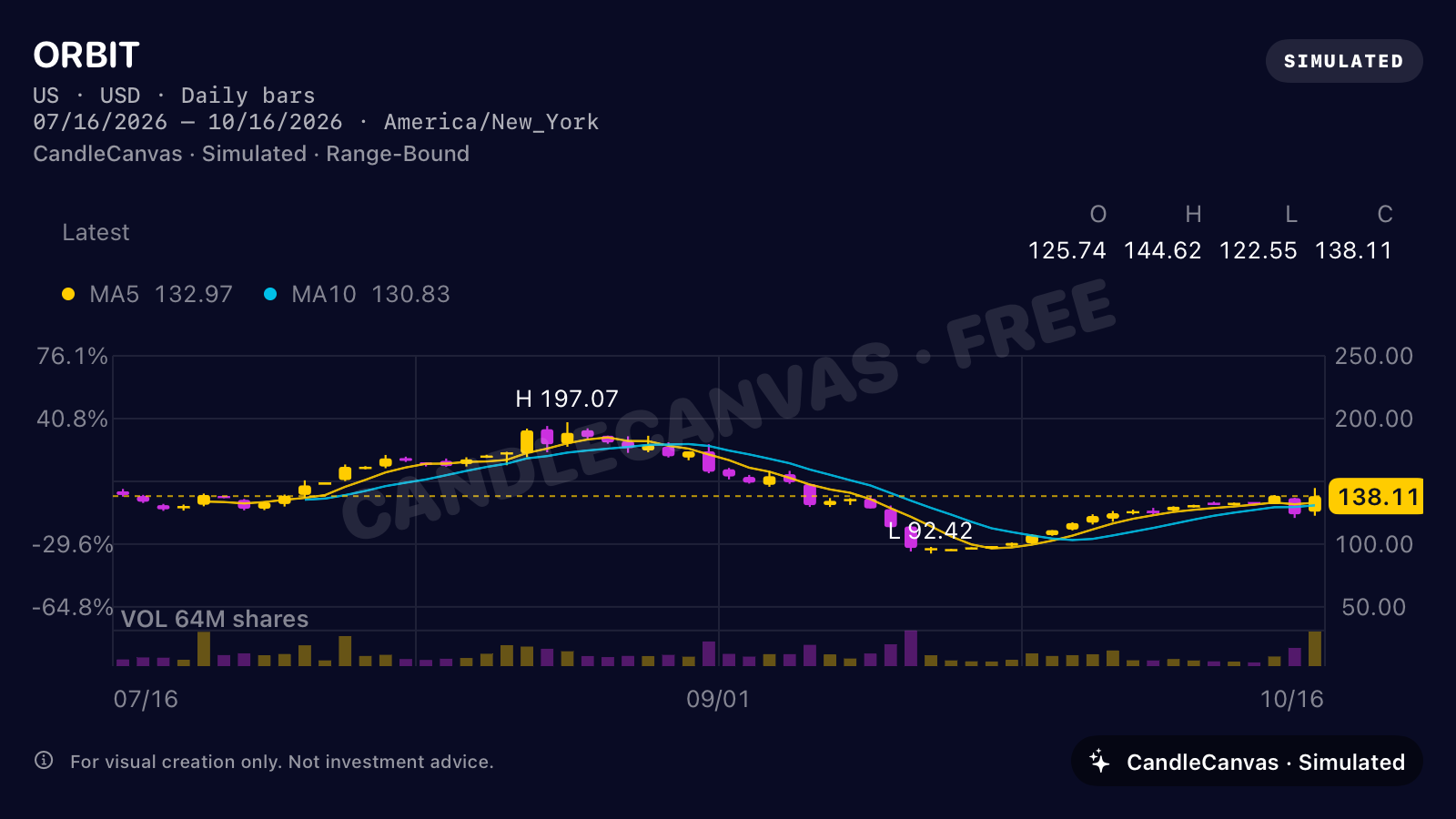
A chart image can make a prototype feel populated before a market-data integration exists. Decide whether you need a wide panel or a tall composition before generating the image. The ORBIT example below uses the app’s gold-up, purple-down palette and Sideways preset.
This is a static asset workflow: the PNG can be placed in a design file, but it does not supply interactive chart behaviour or actual quotes.
Create the ORBIT look
- In Stock Name, enter ORBIT.
- Select the 3M view. Use the US market preset and a starting price of 142.
- In Trend, choose Sideways. Set Volatility to 2.8.
- In Colors, select gold-up, purple-down. In Chart Details, keep volume, MA5 and MA10 visible.
- Tap New Chart if you need another variation, then Export.
Choose the format for the mockup
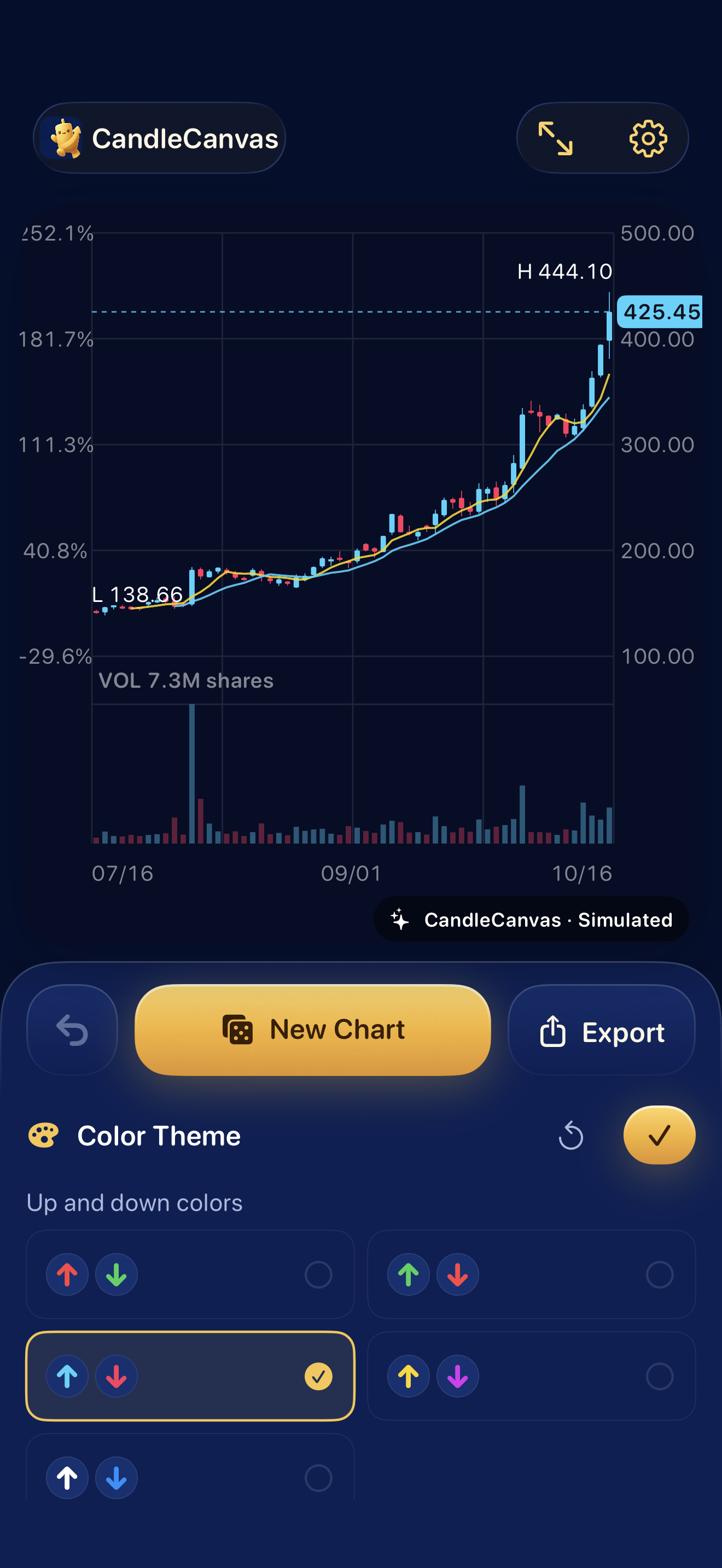
Export Landscape for a 1600 × 900 wide panel, or Portrait for a 1080 × 1350 tall layout. Keep the image’s aspect ratio when placing it in your design tool; stretching the image distorts the text and candle bodies.
The portrait ORBIT example shows the same simulated chart arranged for a taller canvas. Check the actual size in your prototype: an image that is readable full-screen may be too dense inside a small card.
Keep a consistent visual language
Keep the up/down convention consistent across your mockup. Gold-up/purple-down and red-up/green-down communicate different visual conventions. Add a short legend if your audience would otherwise have to guess.
The app exposes colour themes and chart-detail toggles; it does not claim arbitrary brand-colour editing. Choose the nearest suitable theme and adjust the surrounding mockup accordingly.
Before presenting the prototype
- Retain the simulated-data label so the image is not mistaken for an actual financial result.
- Use a fictional chart name. Do not present generated values as a real stock’s history.
- Explain that the chart panel is a visual asset if demonstrating an unfinished app.
- Test live updates, chart interaction and accessibility separately in the eventual implementation.
For the exact button-by-button sequence, use the illustrated app walkthrough. For a different visual direction, compare the four trend presets.
Based on CandleCanvas app features and original app exports. All illustrated market data is fictional.