 ClearNative
Candlestick chart examples.
Made for your next project.
Explore original candlestick chart examples for presentations, lessons and mockups. Five colour themes. Four trend presets. Deliberately dramatic scenarios, exported from CandleCanvas.
All images in English · Original app exports · Simulated data
A strong rally for presentation slides.
1600 × 900 · Cyan up / pink down
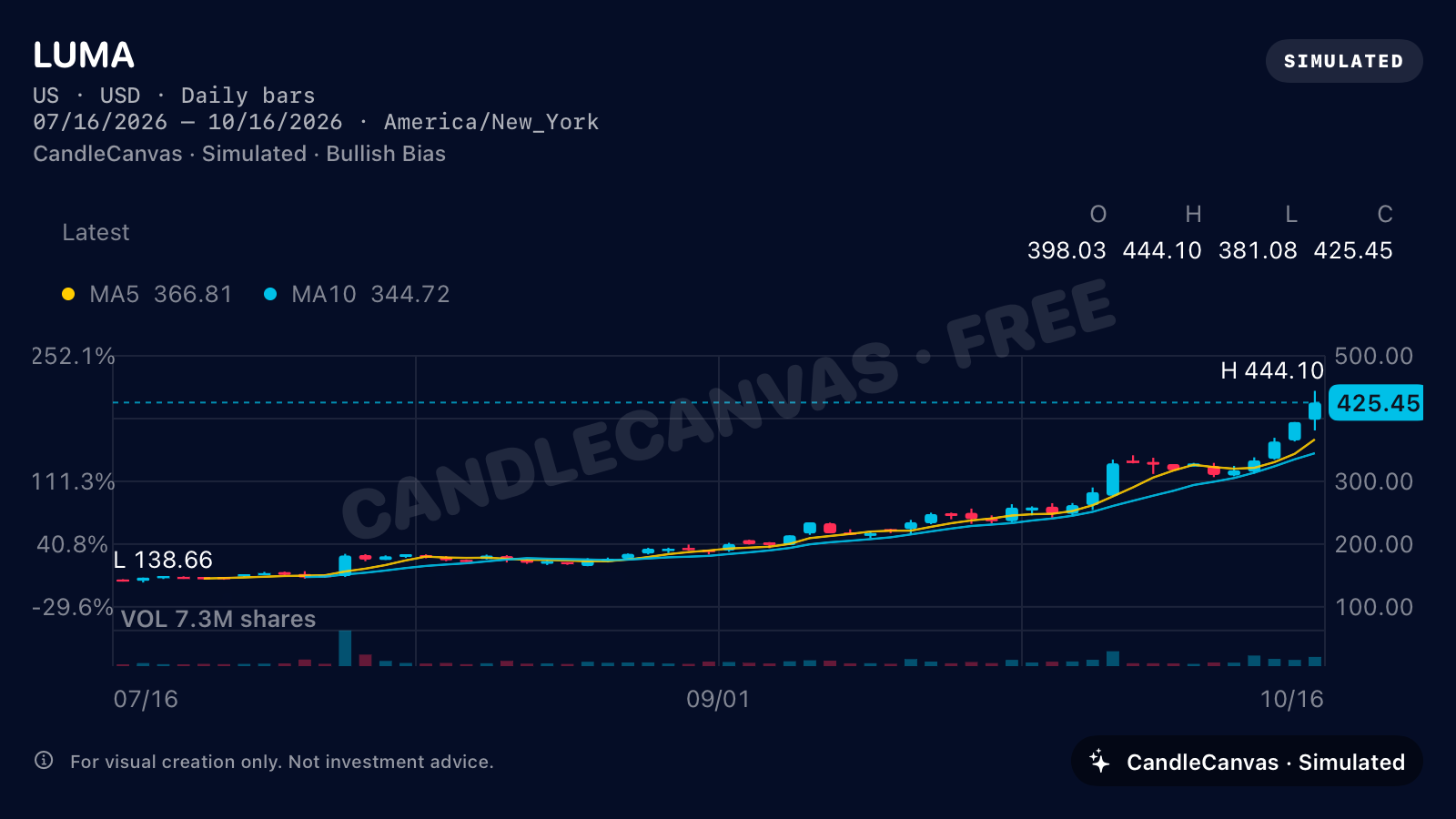
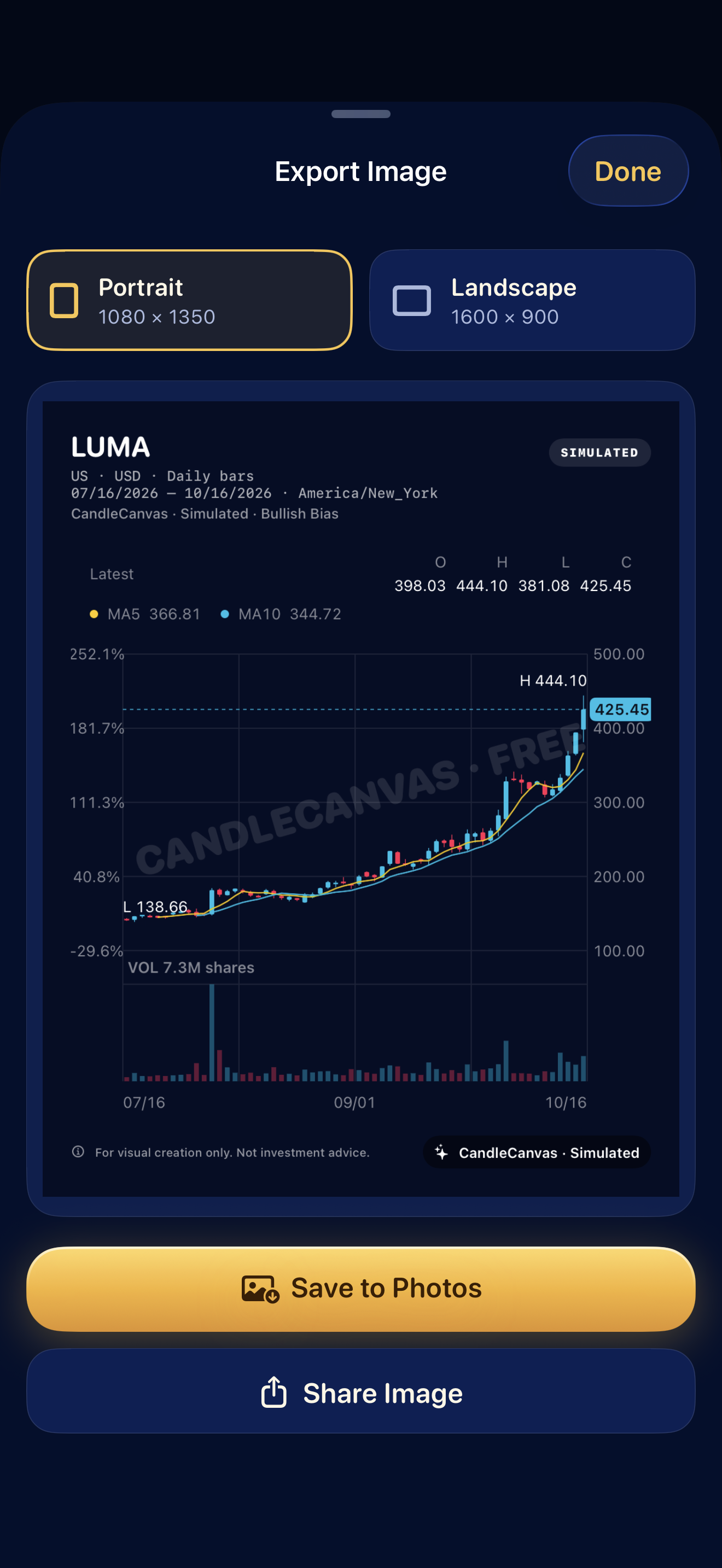
This selected simulated scenario rises from an opening price of 142 to a final close of 425.45, roughly tripling across the illustrated span. Use the cyan and pink palette for a pronounced fictional rally in a wide slide. MA5, MA10 and volume give the audience details to discuss without claiming to show a real company’s history.
- Trend
- Rising
- Colours
- Cyan up, pink down
- Starting price
- 142
- Volatility
- 3.2
- Moving averages
- MA5 + MA10
- View
- 3M · US market
More than one way to draw a market.
These selected scenarios use stronger moves and wider swings to make the differences easy to see. Open a full-resolution export to inspect the candle bodies, wicks and volume.
A steep decline for a downtrend lesson
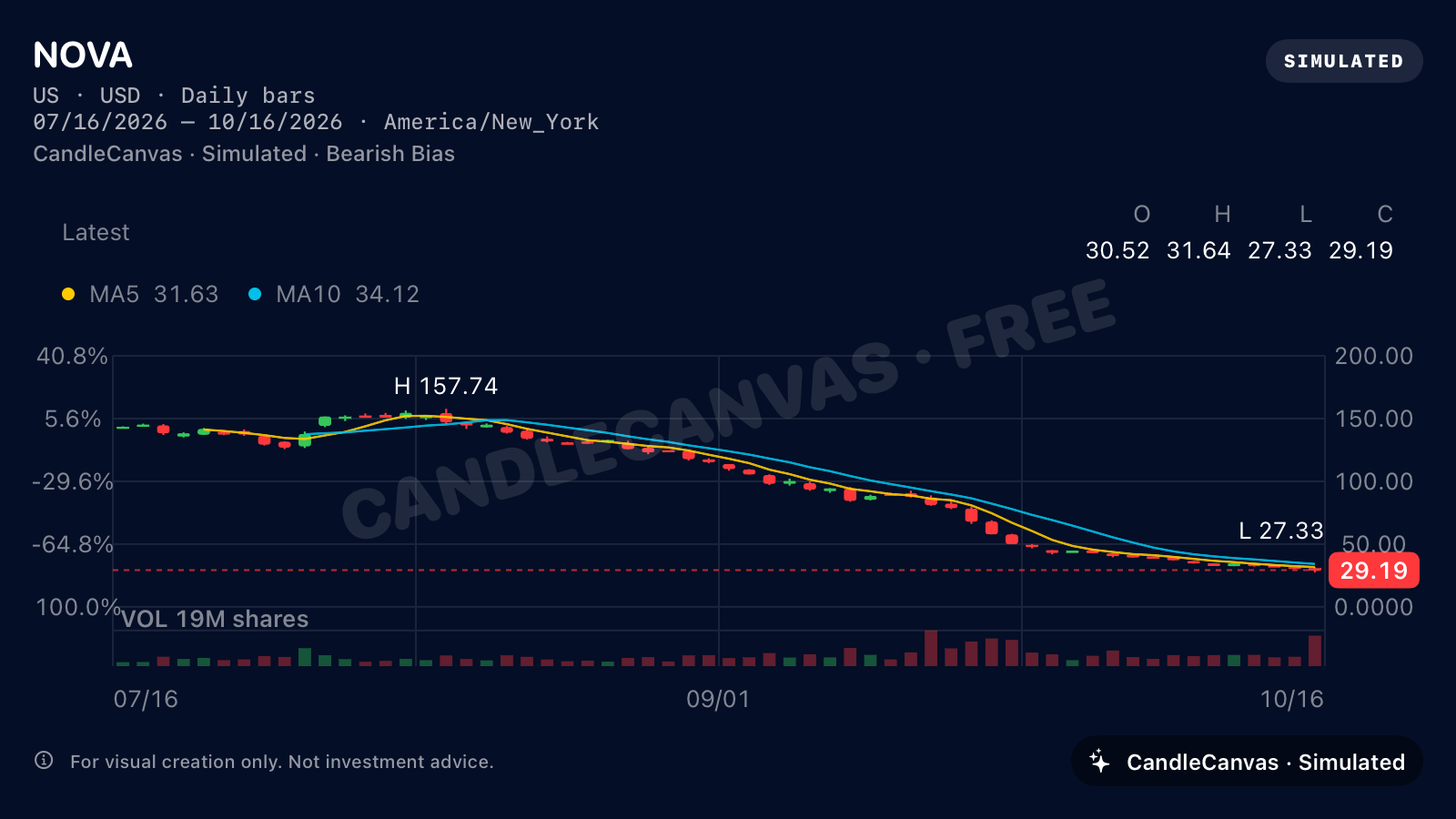
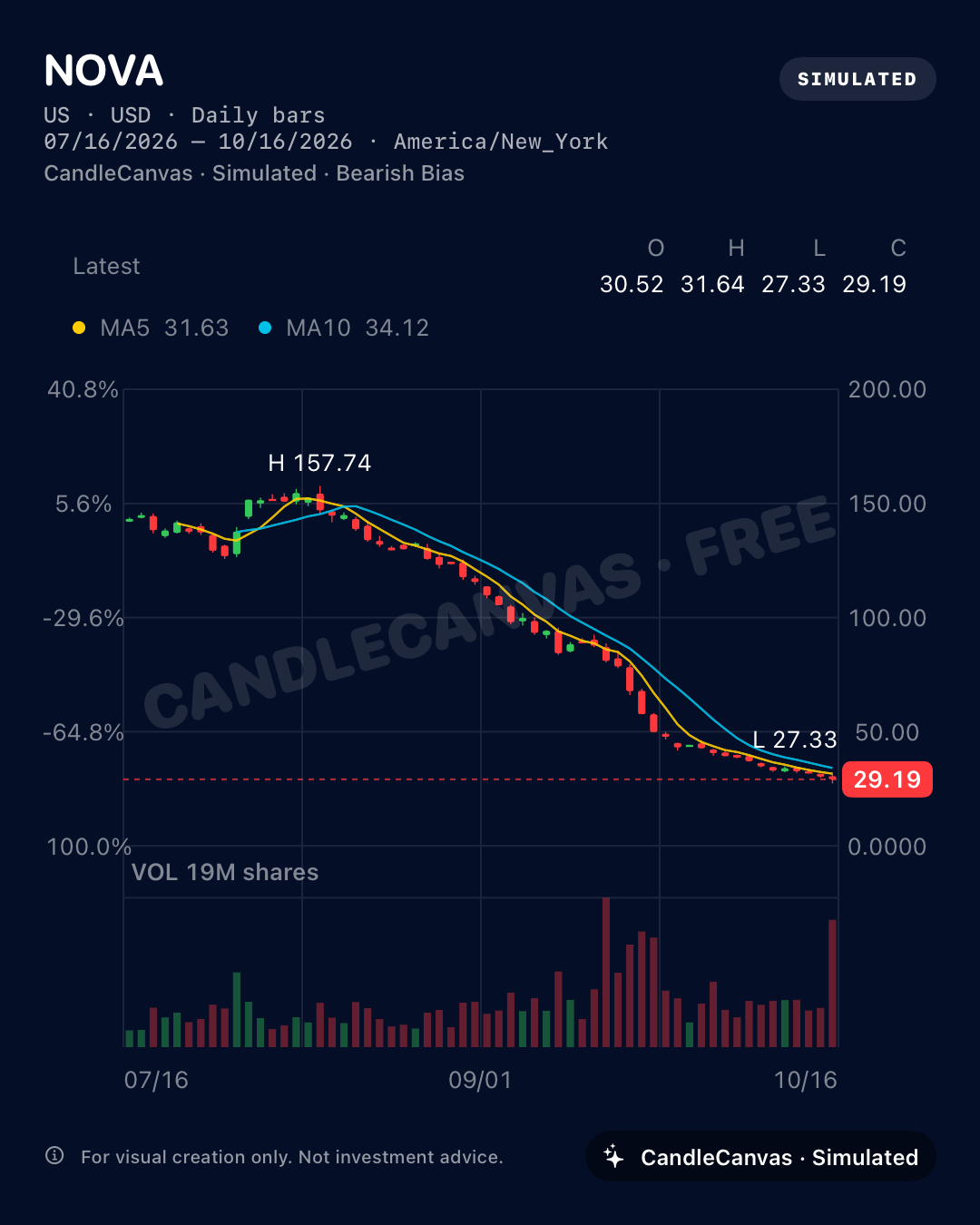
This selected simulated scenario falls from an opening price of 142 to a final close of 29.19, a decline of about 79.4%. Show how a sharp overall decline can still contain rising candles. Green means a candle closed above its open; red means it closed below. The fictional NOVA series includes both colours within its falling scenario.
- Trend
- Falling
- Colours
- Green up, red down
- Starting price
- 142
- Volatility
- 3.2
- Moving averages
- MA5 + MA10
- View
- 3M · US market
Wide price swings for interface mockups
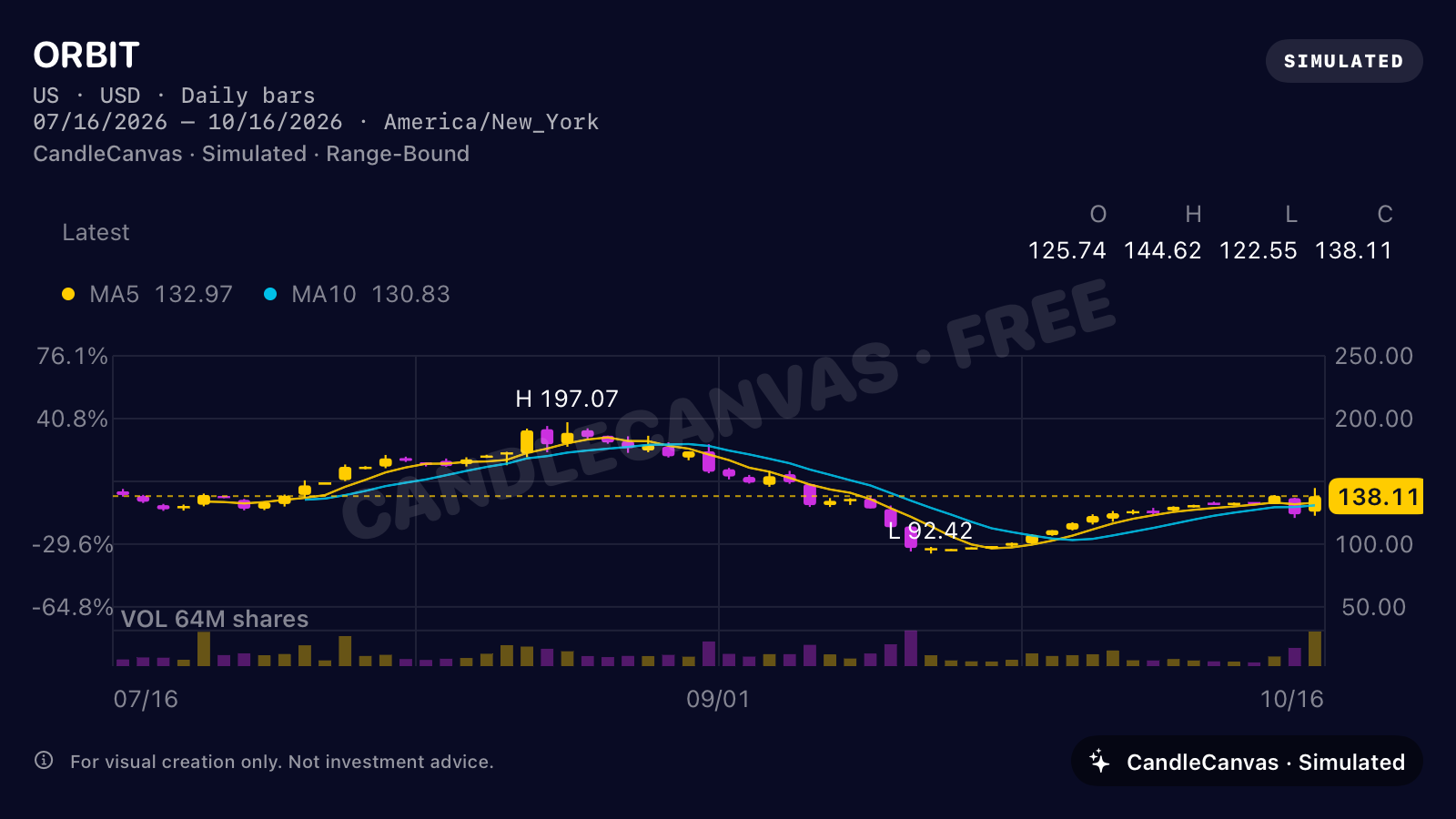
Use the range-bound ORBIT example as a visual asset for a prototype. Its broad swings finish close to the starting level, showing that Sideways does not have to mean a quiet, flat line. The exported PNG is a static image, ready to place in a design file.
- Trend
- Sideways
- Colours
- Gold up, purple down
- Starting price
- 142
- Volatility
- 2.8
- Moving averages
- MA5 + MA10
- View
- 3M · US market
A deep pullback and rebound for a storyboard
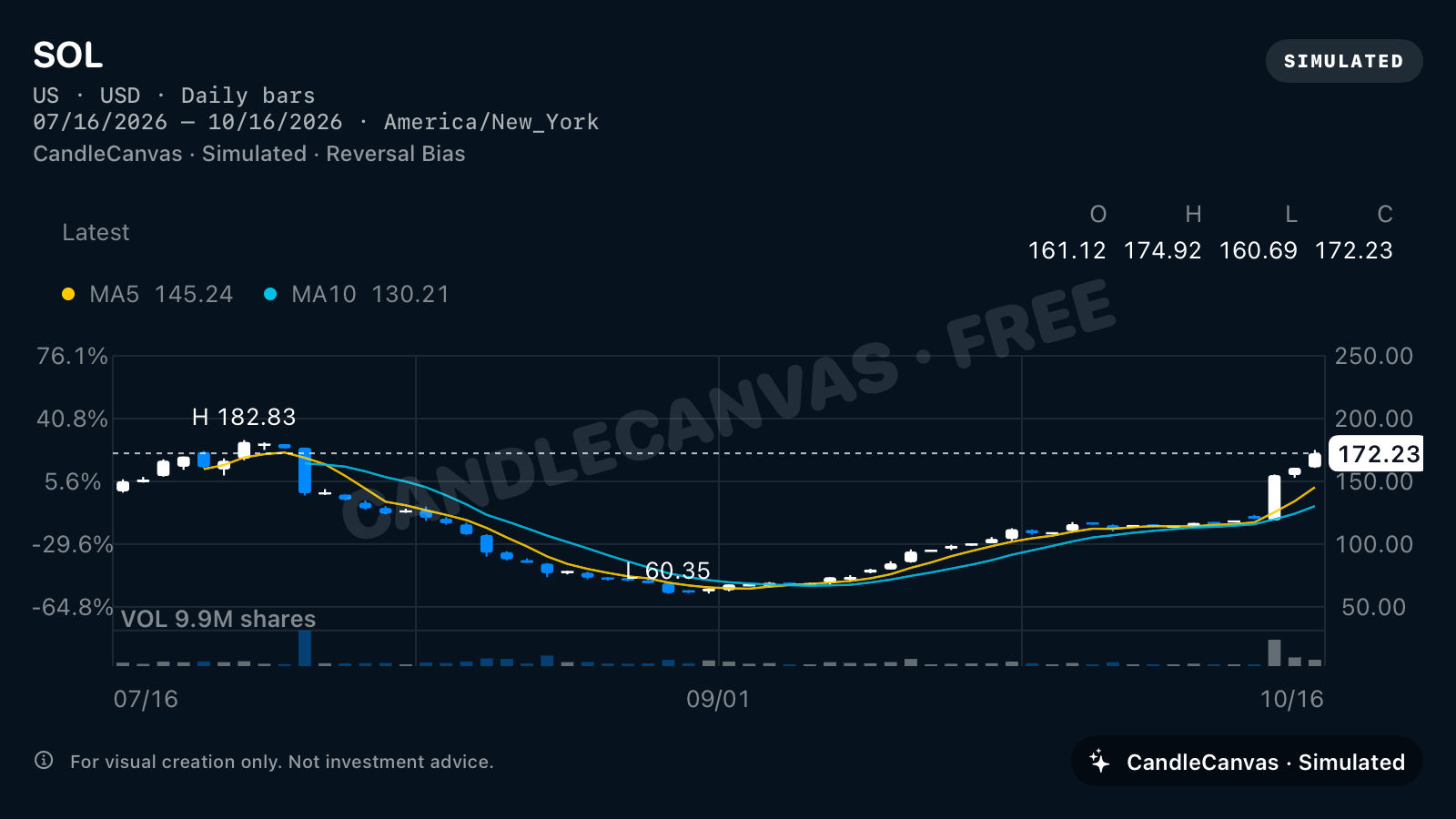
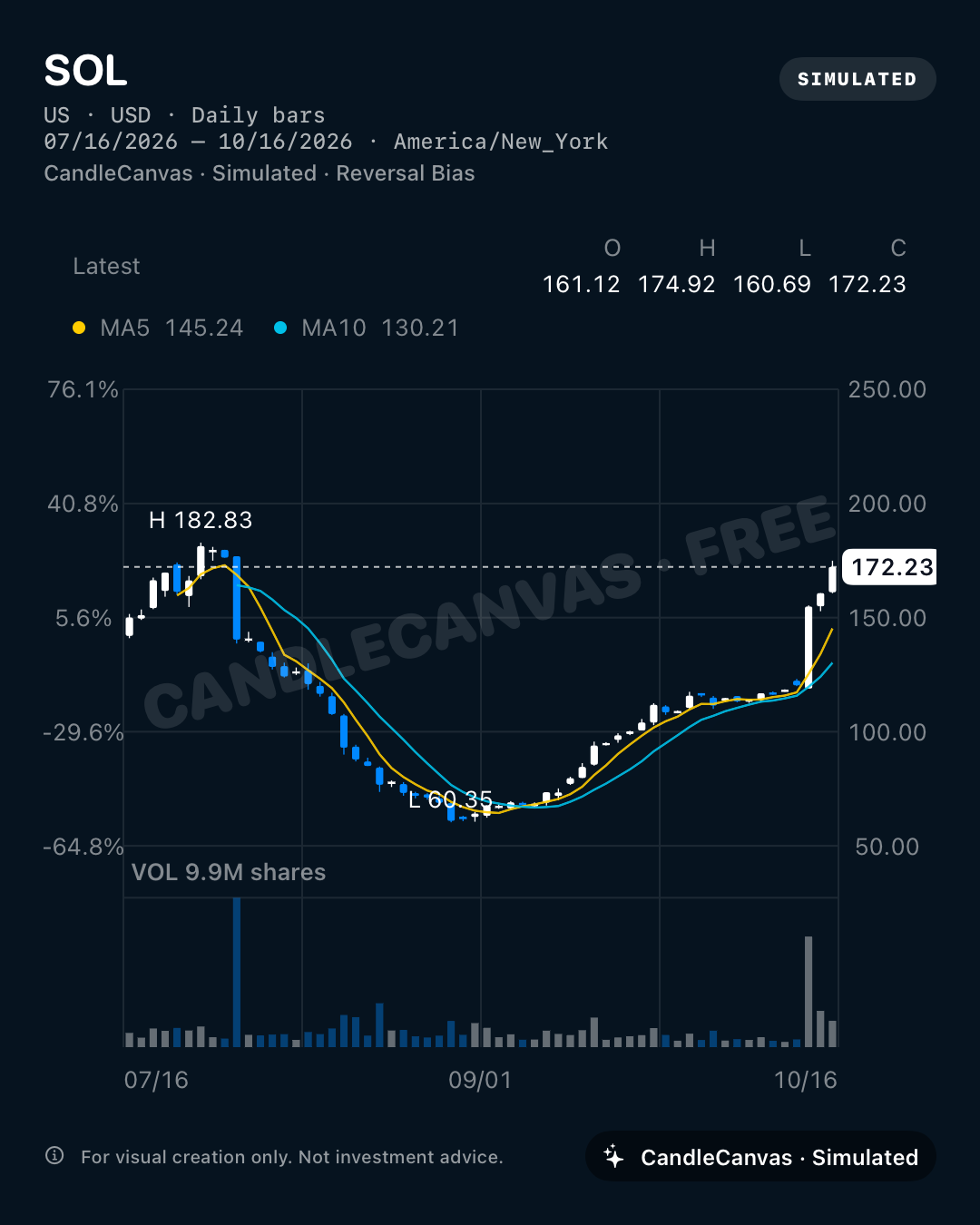
SOL drops to around 60 before recovering above 170. Use its white and blue candles to illustrate a deep fictional decline followed by a strong rebound. This is an app-generated scenario, not a signal or a claim that a real reversal predicts a future price.
- Trend
- Reversal
- Colours
- White up, blue down
- Starting price
- 142
- Volatility
- 3.2
- Moving averages
- MA5 + MA10
- View
- 3M · US market
A red-up rally for a focused visual lesson
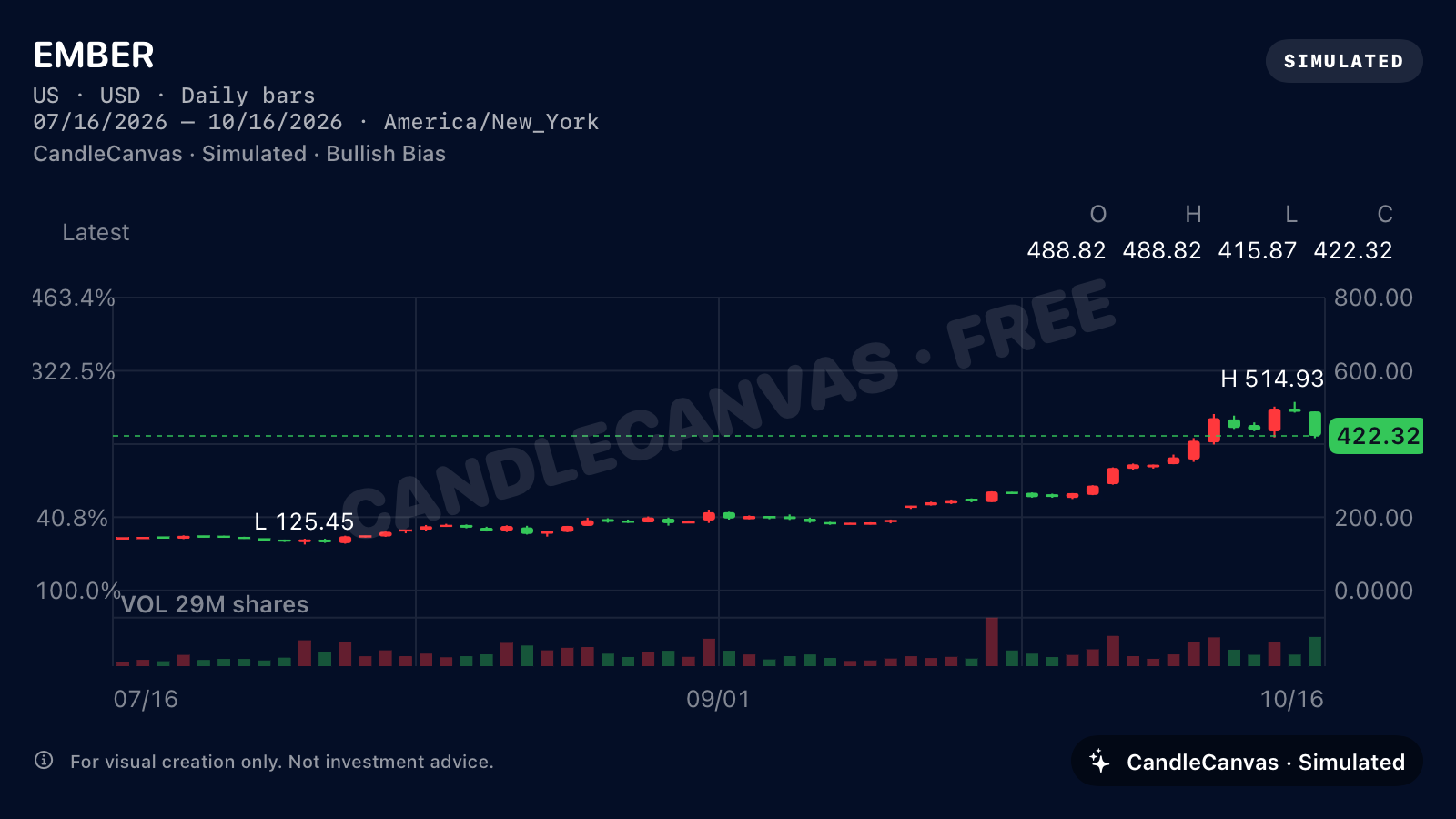
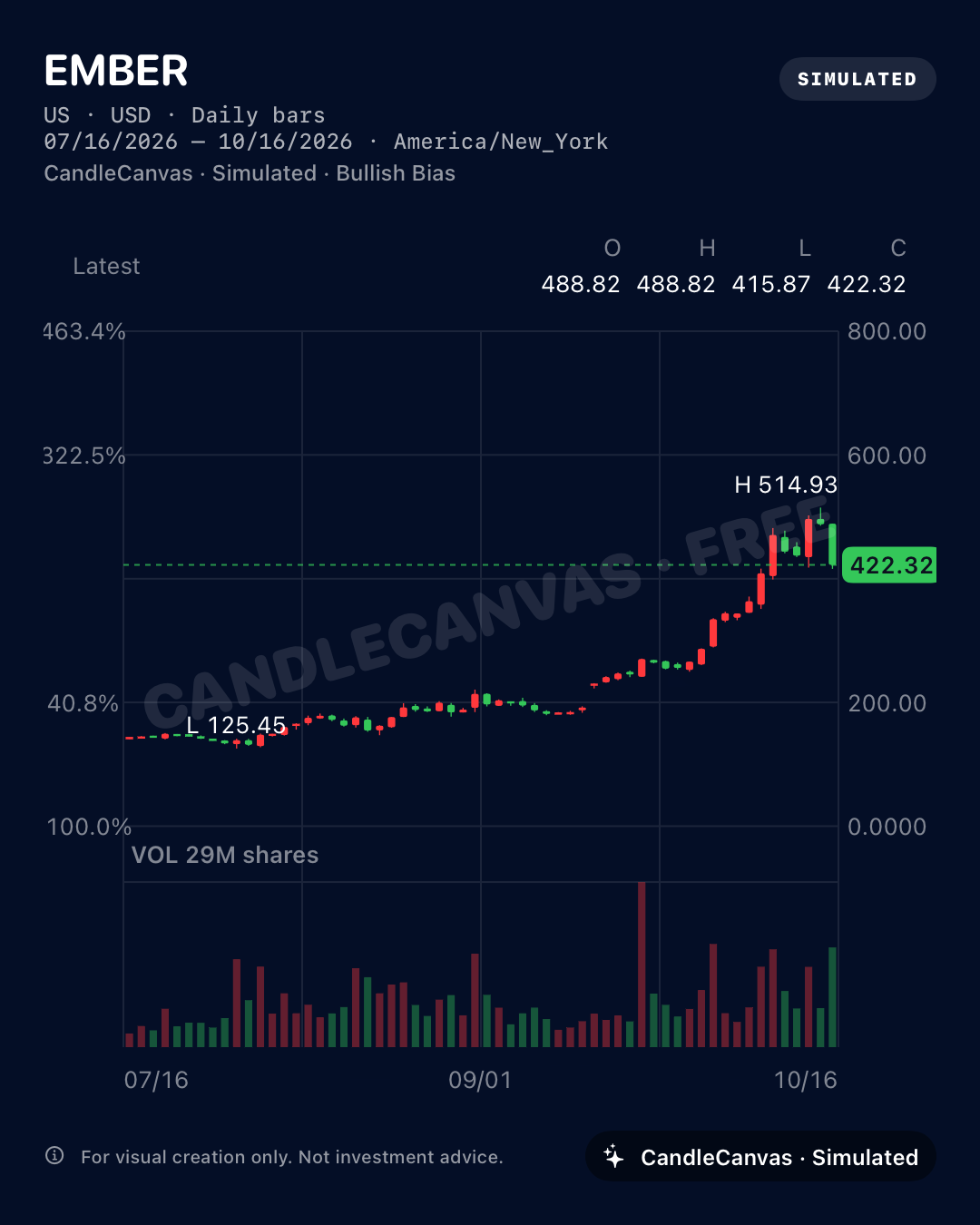
EMBER uses red-up, green-down candles with moving averages switched off. This keeps attention on candle bodies and wicks, and demonstrates a different colour convention without changing what open and close mean.
- Trend
- Rising
- Colours
- Red up, green down
- Starting price
- 142
- Volatility
- 3.2
- Moving averages
- Off
- View
- 3M · US market
ORBIT, ready for a portrait mockup.
The same gold-and-purple scenario is also available as a 1080 × 1350 portrait image. The app lays out the chart for the taller canvas; this is not a crop of the landscape image.
Place it in a prototype or a portrait lesson card with its proportions and simulated-data label intact.
Follow the mockup workflow →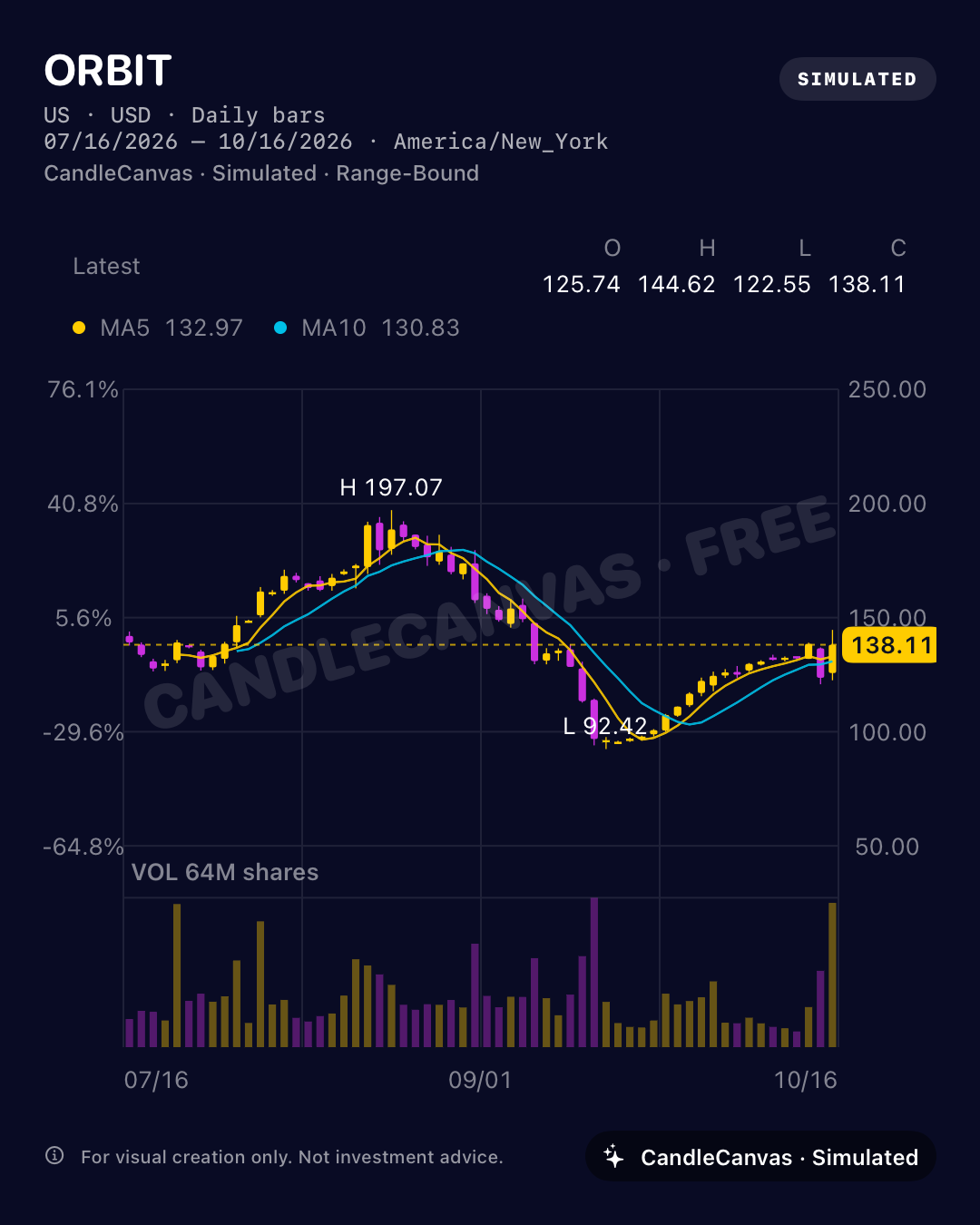
See the actual app steps.
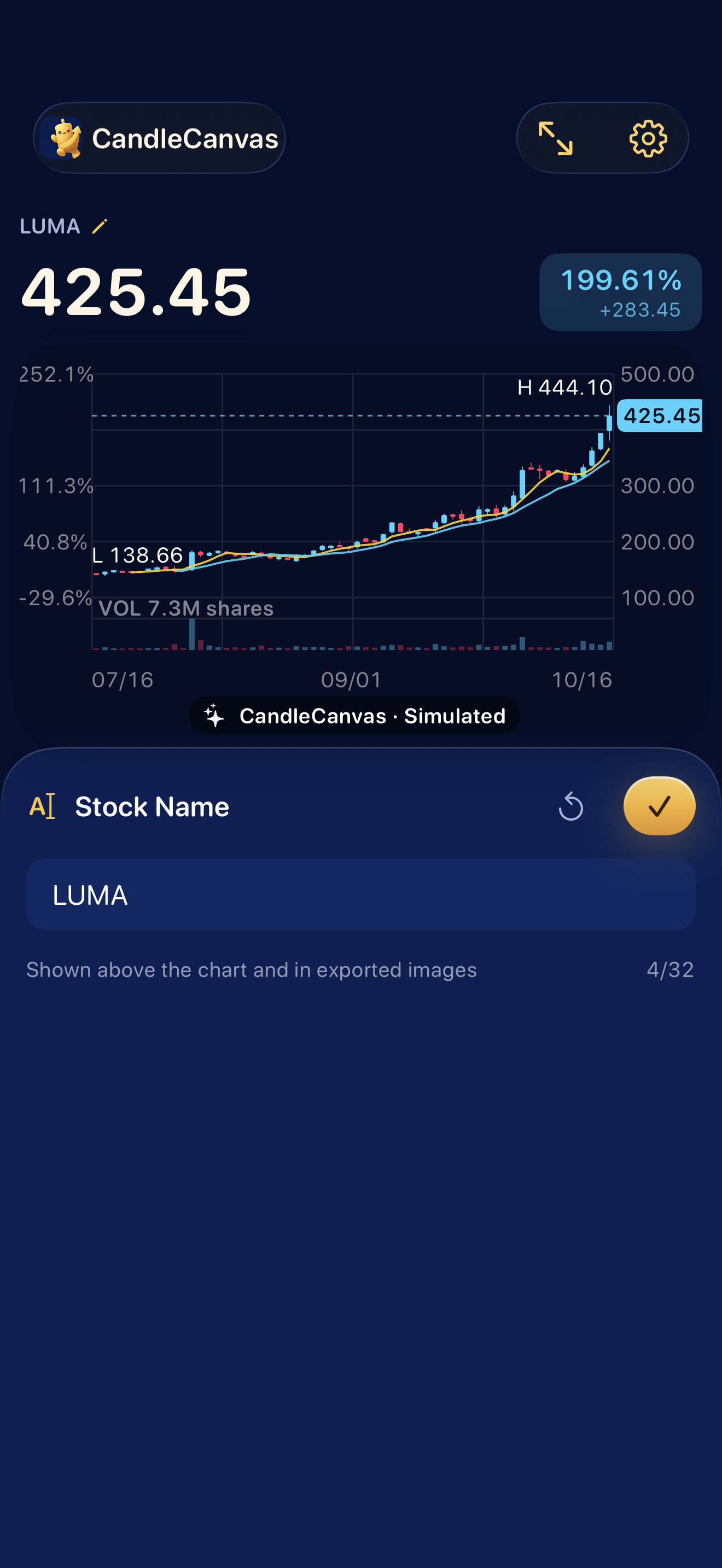
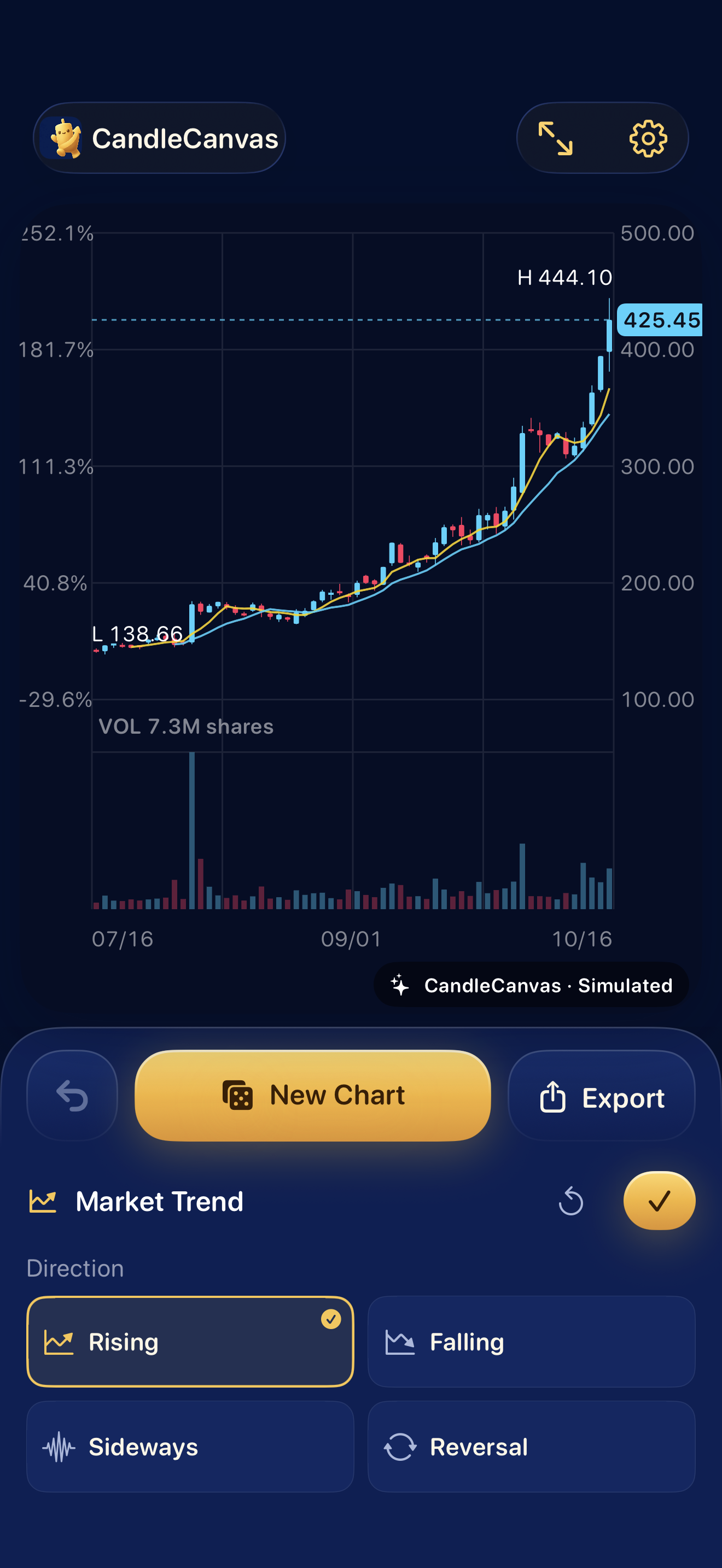
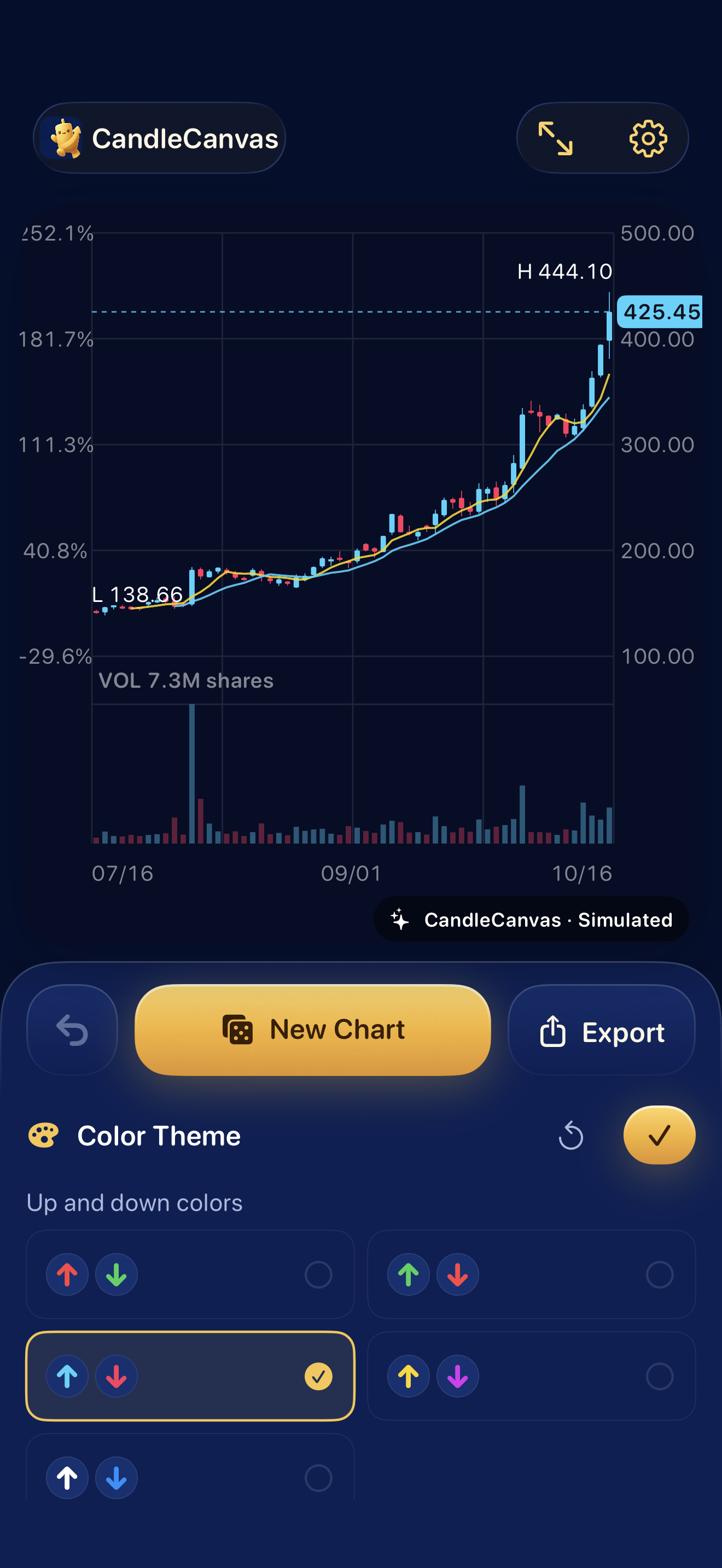
Real iPhone screenshots, using the same LUMA scenario as the slide example above. The export screen shows Portrait selected; choose Landscape for the wide slide.
Name the scenario
Tap Stock Name, enter a fictional label and confirm.
Choose the direction
Tap Trend, then choose Rising, Falling, Sideways or Reversal.
Set the colour convention
Tap Colors and select the up/down palette that suits your audience.
Export the finished image
Tap Export, choose Portrait or Landscape, then Save to Photos or Share Image.
About these examples
All market names are fictional. Prices, dates, volume and indicators are simulated. These examples were selected for dramatic movement. Lower Volatility in the app for a calmer look. Each preset expresses a broad tendency, not a guarantee about every candle. Seeds and volatility differ between examples, so they are not a one-variable comparison.
Recipes show the visible controls used. The captures also use a fixed internal demo seed and date for consistency; matching the recipe in the public app produces your own variation rather than an identical image. Keep the simulated-data disclosure visible wherever you use an export.
Choose your next project
How to Make a Candlestick Chart for Presentations on iPhone
Follow real CandleCanvas screenshots from Stock Name and Market Trend to Color Theme and Export Image. Create a simulated chart PNG for your slides.
4 min read Design workflowCreate Stock-Chart Mockups: A CandleCanvas App Workflow
Build a gold and purple fictional chart for an interface mockup. Follow the actual CandleCanvas controls and choose a portrait or landscape PNG.
3 min read Visual referenceChoosing Candlestick Chart Trends, Colours and Details
Compare original CandleCanvas exports for rising, falling, sideways and reversal scenarios. See five candle-colour themes and the settings used.
4 min read