 ClearNative
Start at the ATO, not a paid application ad
A tax file number (TFN) identifies you in Australia’s tax and superannuation systems. Applying through the Australian Taxation Office is free. The correct application pathway depends on your circumstances; start with the ATO’s application directory rather than assuming a form shared by another traveller is right for you.
Before opening the application
Use these boxes while this page is open, or print a copy. Web checkmarks are not saved.
Keep a record without exposing your identity
Save the application reference and submission date somewhere private. Make a separate reminder to follow the ATO’s current instructions if the outcome has not arrived within its stated timeframe. Do not repeatedly submit applications simply because you have not received an immediate result.
Do not upload your passport or TFN into a public discussion to ask whether a form looks right. You can usually explain the issue without showing document numbers. If you need help, begin at the contact options on the ATO website.
A TFN is not permission to work
Treat tax setup and visa conditions as separate checks. Having a TFN does not establish permission to work in Australia. Confirm your individual conditions through Home Affairs before starting a job. This page does not assess tax residency, visa eligibility or personal tax obligations.
Your next steps
Return to the arrival checklist and mark down your application’s next action. If you are also setting up banking, use the bank-account checklist to prepare questions for the provider. You do not need to put your actual TFN in a general planning checklist.
From your arrival plan to a checklist in the app
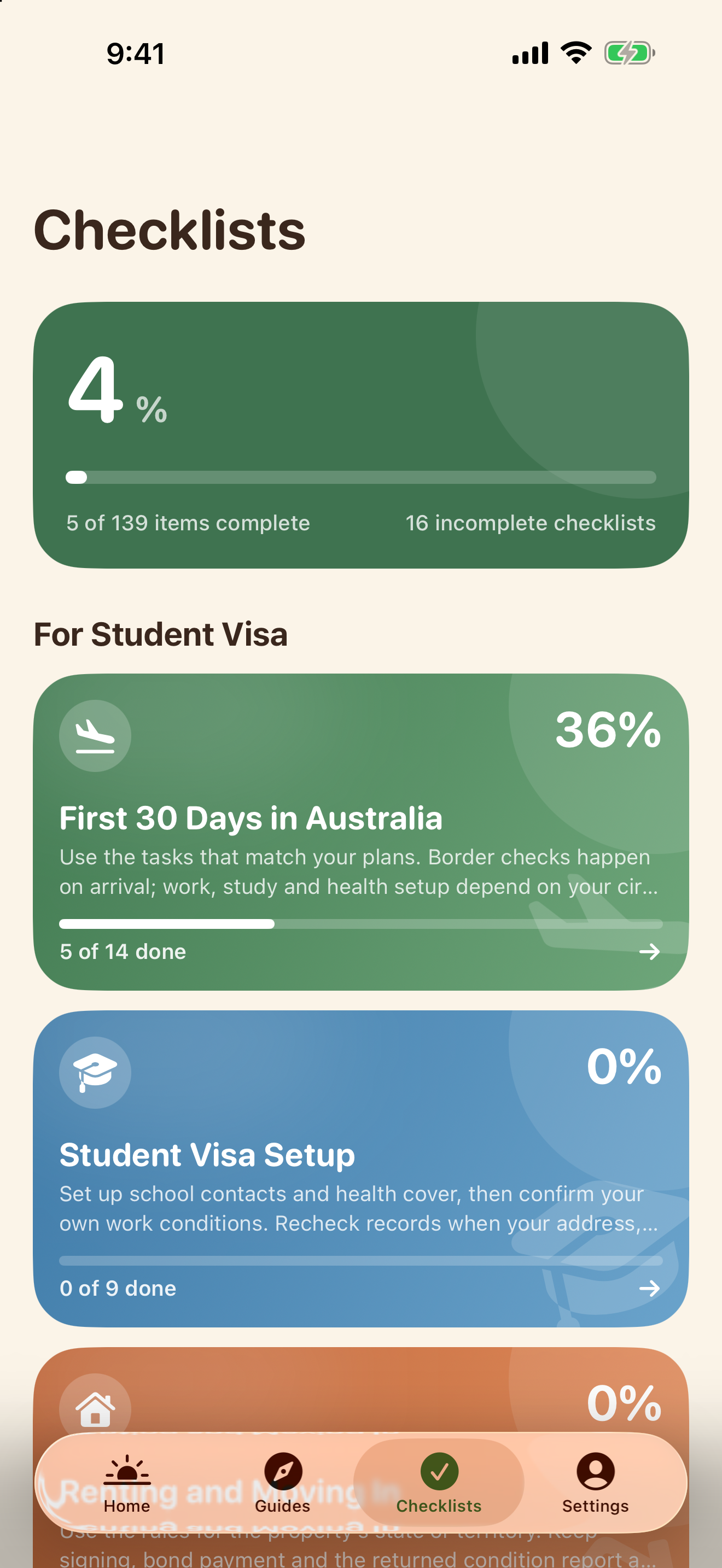
Use the web guide to prepare, then open NewToAU to keep track of your checklist. The screenshots below show the real English iPhone interface with an example profile and demonstration progress.
Find your next checklist
Tap Checklists. Open First 30 Days in Australia or another checklist relevant to your situation.
Tick completed steps
Open the checklist and tick the tasks you have completed. The progress summary updates as you go.
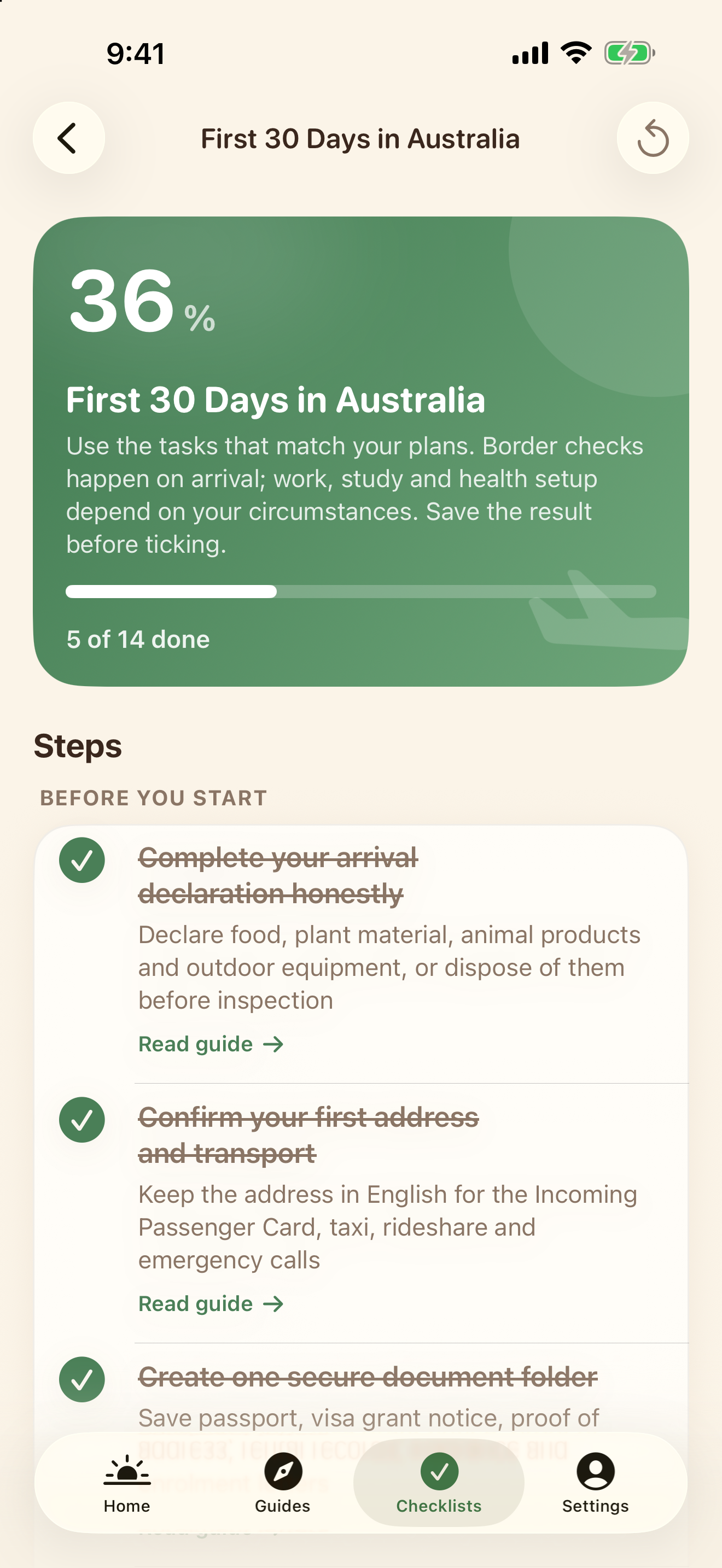
Your state and category help filter relevant content; they are not an eligibility assessment. Web tasks do not sync into the app. NewToAU does not submit applications or store your identity documents.
Official sources & scope
Use the linked official guidance to confirm requirements for your own circumstances. ClearNative is an independent publisher, not a government service.
General planning information. Eligibility and requirements depend on your circumstances. Official sources checked for this guide on 19 October 2026.